Whisper GPU Setup
In the ~/repositories/Apps folder, created the corresponding whisper folder, then inside of it created the following docker-compose.yml file:
services:
  whisper-web:
    image: fedirz/faster-whisper-server:latest-cuda
    container_name: whisper_gpu
    runtime: nvidia
    environment:
      ASR_MODEL: "large-v3"
      ASR_ENGINE: faster_whisper
      ASR_DEVICE: cuda
    expose:
      - "8000" #Litellm handles exposure
    restart: always
    volumes:
      - whisper_models:/root/.cache/huggingface
    networks:
      - litellm_network

volumes:
  whisper_models:

networks:
  litellm_network:
    external: true
    name: litellm-stack_default
The Whisper container is attached to the same Docker network as LiteLLM, this allows LiteLLM to reach Whisper via container hostname: http://whisper_gpu:8000.
Then in LiteLLM's config file Whisper is added as an OpenAI compatible model:
model_list:
    # =====================
    # WhisperAI
    # =====================
    - model_name: whisper
    litellm_params:
        model: openai/large-v3
        api_base: http://whisper_gpu:8000/v1  # container name as hostname
        openai_compatible: true
        api_key: none
Additional Notes:
- Models are cached in
/root/.cache/huggingface - And stored via Docker volume:
whisper_models: - Audio files are not stored (processed in memory only)
- No preprocessing (limitations regarding music files, long audio files, etc).
Now in OWUI > Admin Panel > Settings > Audio, configure OWUI to use the Whisper model exposed via LiteLLM for audio transcription requests:
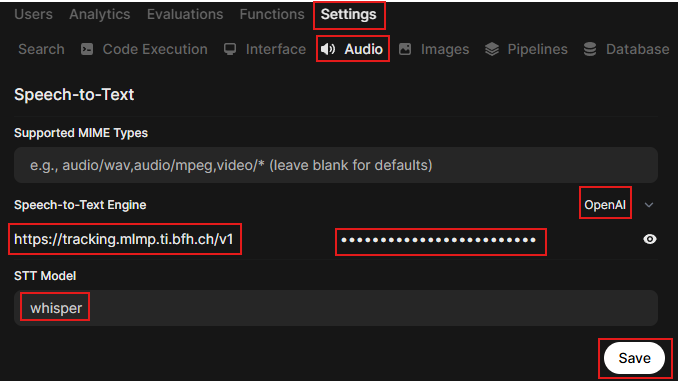
- Select
OpenAIfrom the dropdown menu - Insert LiteLLM's API base URL:
https://tracking.mlmp.ti.bfh.ch/v1 - Insert API Key
- Insert model's name (same as in model_name in model_list)
- Save
Finally start Whisper container and restart OWUI and LiteLLM.