SSH Key Setup
Generate SSH Key for sysadmin:
sudo ssh-keygen -t ed25519 -C "duodecillion@ti.bfh.ch"
Then you will be prompted for: - Location: Press Enter - Passphrase: Press Enter - Repeat Passphrase: Press Enter
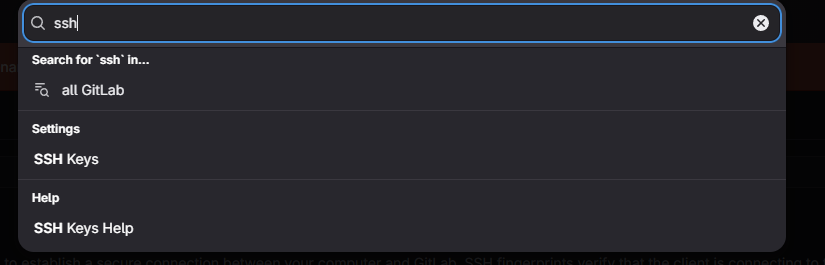
Then in GitLab look for the SSH Keys section:
Click on 'Add new Key' and then copy the .pub of your freshly generated ssh key into the SSH Keys section of GitLab:
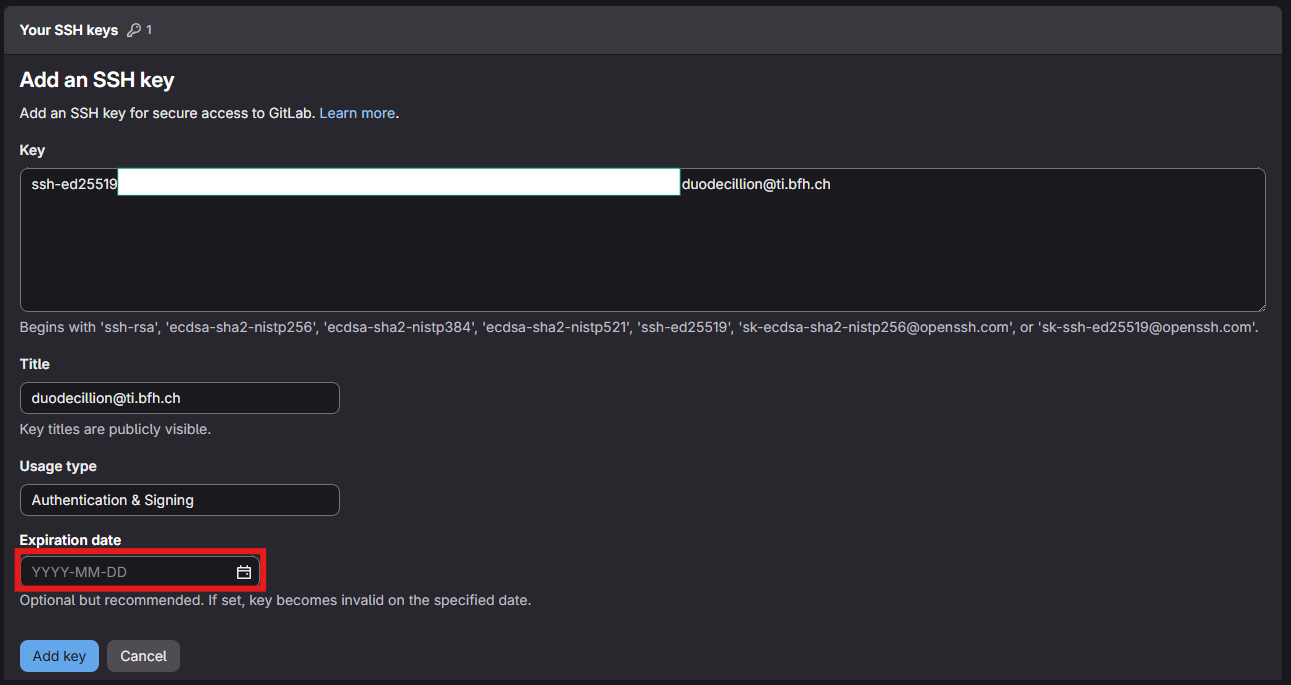
At the end the date is deleted so the key never expires.
Now try out the connection by typing in the terminal sudo ssh -T git@gitlab.ti.bfh.ch, you should get a message like Welcome to GitLab, @pnl1!.
Switch the git repo to use SSH:
Right now our repo is using HTTPS: https://gitlab.ti.bfh.ch/infra/mlmp/scripts/backup/cleanup-and-backup.git, we need to change this to SSH:
sudo git remote set-url origin git@gitlab.ti.bfh.ch:infra/mlmp/scripts/backup/cleanup-and-backup.git
To test the connection, create a file and push it, you shouldn't be prompted to anything:
sudo touch ssh-test
sudo git add .
sudo git commit -m 'ssh test'
sudo git push origin main